Week of January 18
This was a very busy week in cybersecurity and there is a lot to discuss.
Critical Bluetooth Vulnerability: WhisperPair
A critical vulnerability in Google’s Fast Pair protocol allows attackers to hijack Bluetooth accessories. Dozens of commercial devices from 16 manufactures were tested and 68% of them were successfully hijacked.
This vulnerability makes more than 100 million wireless headphones, earbuds, speakers, and other devices susceptible to eavesdropping and remote tracking more, --making it possible to stalk someone who walked by you with their bluetooth device on.
Researchers posted a video demonstrating the exploit and how easy it can be to hijack a bluetooth device and then track the device’s location. They have also published a list of vulnerable devices.
Recommendations
Check to see if any of your devices are listed on the vulnerable devices website, and look for device updates if they are.
References
List of vulnerable devices: https://whisperpair.eu/vulnerable-devices
Demonstration video: https://youtu.be/-j45ShJINtc?si=_8nrkqNqT9YRTqoD
CrashFix: A Malicious Ad Blocker
NextShield is a malicious ad blocking extension that deliberately crashes Google Chrome, Edge, and other Chromium web browsers as a precursor to a ClickFix attack. Because of this, it has been dubbed “CrashFix.”
The plugin makes the web browser consume massive amounts of system resources and become unresponsive, crashing or freezing the browser. Once the browser is restarted, NextShield displays an error message, claiming that there is a problem that needs to be fixed before the browser can work. It instructs users to run a script that it has coppied to the clipboard, promising this will fix the problem. The script is malicious in nature, and once it runs, malware is installed on the system.
How to stay Safe
NextShield has been pulled from the [Chrome Store] and is no longer available, but it was effective and new variants are likely to popup so let’s revist security practices you can follow to keep yourself safe from similar attacks in the future.
With extensions less is more
Extensions are security risks. If you don’t install malware, it can’t harm you, so unless you absolutely NEED the functionality, don’t install an extension! In many cases you have no idea who wrote it, how secure it is, or if it will remain secure. I currently have no extensions in my web browsers, although in the past I have used password manager extensions.
NEVER copy and past something into Run (Windows + R). Never run something if you don’t know what it is. ClickFix attacks depend upon tricking users into pasting commands into Run because they know how powerful this is and that most users aren’t aware of the risks associated with this activity.
ClickFix is evolving. The early ClickFix attacks were rather transparent but more recent versions have become increasingly sophisticated. So don’t let your guard down. A recent version makes the browser full screen and displays a Blue Screen of Death, so it looks like Microsoft is telling you to copy and paste something into run. If you are asked to paste something into run, do not do it. Consult with a IT professional or contact the vendor or the website owner.
References
https://www.huntress[.]com/blog/malicious-browser-extention-crashfix-kongtuke
Gootloader: an old threat making fresh waves
Gootloader is a malware campaign that went dormant several years ago, but reappeared in late 2025. It uses Search Engine Optimization (SEO) poisoning to direct searches to compromised WordPress sites that have not been patched or updated.
It specifically targets searches for business related documents—inventory forms, cover letters, contract templates, invoice forms, etc.—and dynamically generates a fake forum post, where “someone” has helpfully posted a link for the file requested, as a .zip file download.
That .zip file, however, contains ransomware that scans for and quietly deletes your backups before encrypting them.
This new stran of Gootloader intially evaded detection by Windows Defender and 3rd party security suites, but rules have been developed that should be able to detect if a file contains Gootloader.
Staying Safe
The best defense is to not download the .zip files in the first place. The attack works by tricking people looking for free business files who are careless with their security and are willing to download free files from links on posts. Be careful when a stranger offers you a free lunch.
Do not trust links in forum posts—Gootloader is just one example of malware that can be spread via these types of links.
Get your files from legitimate and trusted sources.
Don’t become complacent! It’s possible to detect this latest version of the ransomware but it initially bypassed security suites because the attacker is clever. They may very well adapt Gootloader and be able to evade detection again in the future.
Technical
Update your antivirus and/or security suite.
To help protect Windows against new variants of Gootloader or other Javascript based attacks, Windows users should consider prohibiting wscript.exe and csript.exe from executing downloaded content. Also make Notepad the default program for Javascript files instead of wscript.exe. This will forceJavascript files to be opened in Notepad by default, instead of executed. This will increase your security but does mean a small handful of programs will have to be manually executed.
References
https://www.huntress[.]com/blog/gootloader-threat-detection-woff2-obfuscation
ConsentFix
ConsentFix is a new attack technique that merges ClickFix styled exploits with OAuth consent phishing to target Microsoft accounts used to log into Windows, Office (Microsoft 365), and corporate accounts. It is worth noting that this style of attack can easily be adapted to work against any Software as a Service (Saas) application and shares techniques with ClickFix.
ConsentFix Highlights
The cyber criminals behind ConsentFix have compromised legitimate websites with high reputation scores and injected a malicious Cloudflare Turnstile that users will experience once they visit the site. They pick legitimate sites because users trust them and they pick sites with high reputation scores because those sites will appear high on a Google Search result. This means when you search for something online, they are targeting the websites you are likely to see in your search results and most likely to visit after clicking on a link from a search result page.
Turnstiles are CloudFlare’s alternative to CAPTCHA challenges that many websites prefer because they are less obtrustive.
Here is a legitimate turnstile:
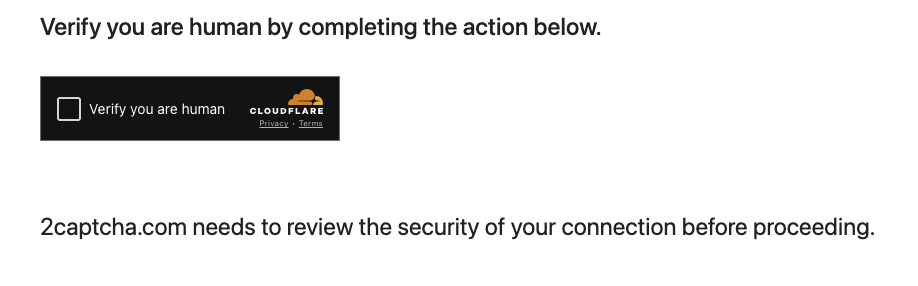
Demo of a Cloudflare turnstile
Here is a ConsentFix turnstile:
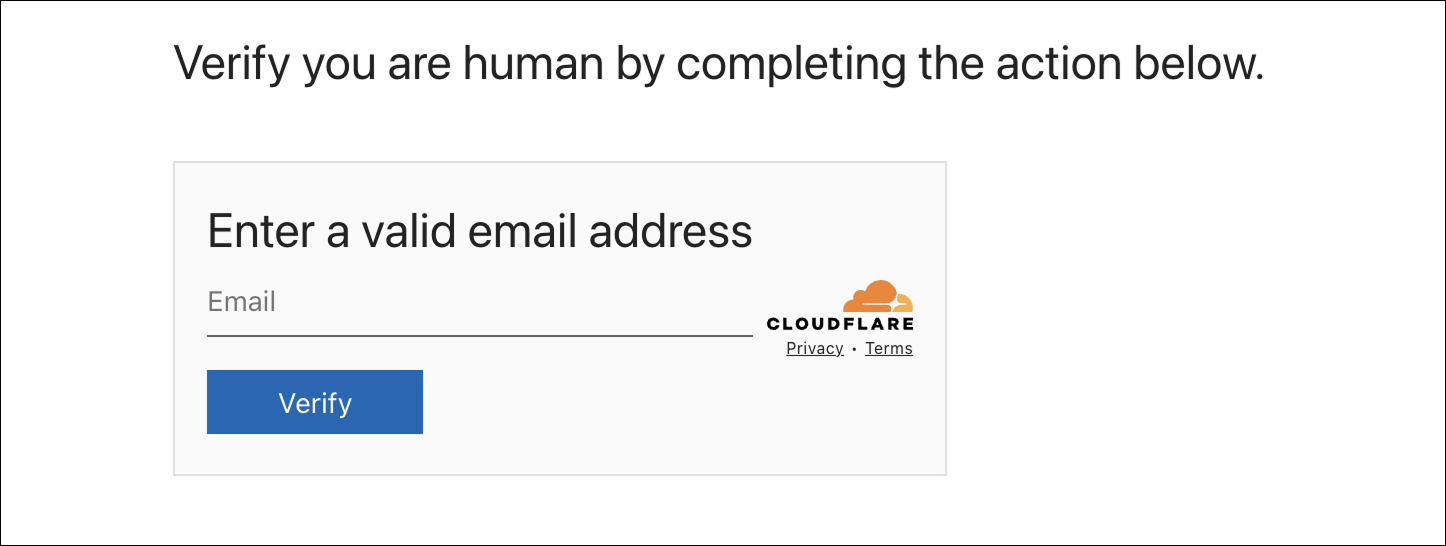
ConsentFix turnstile
© Push Security
The malicious turnstile prompts visitors to enter their email address and then login. Once they’ve logged in to their cloud service, they are instructed to paste the URL into the form:
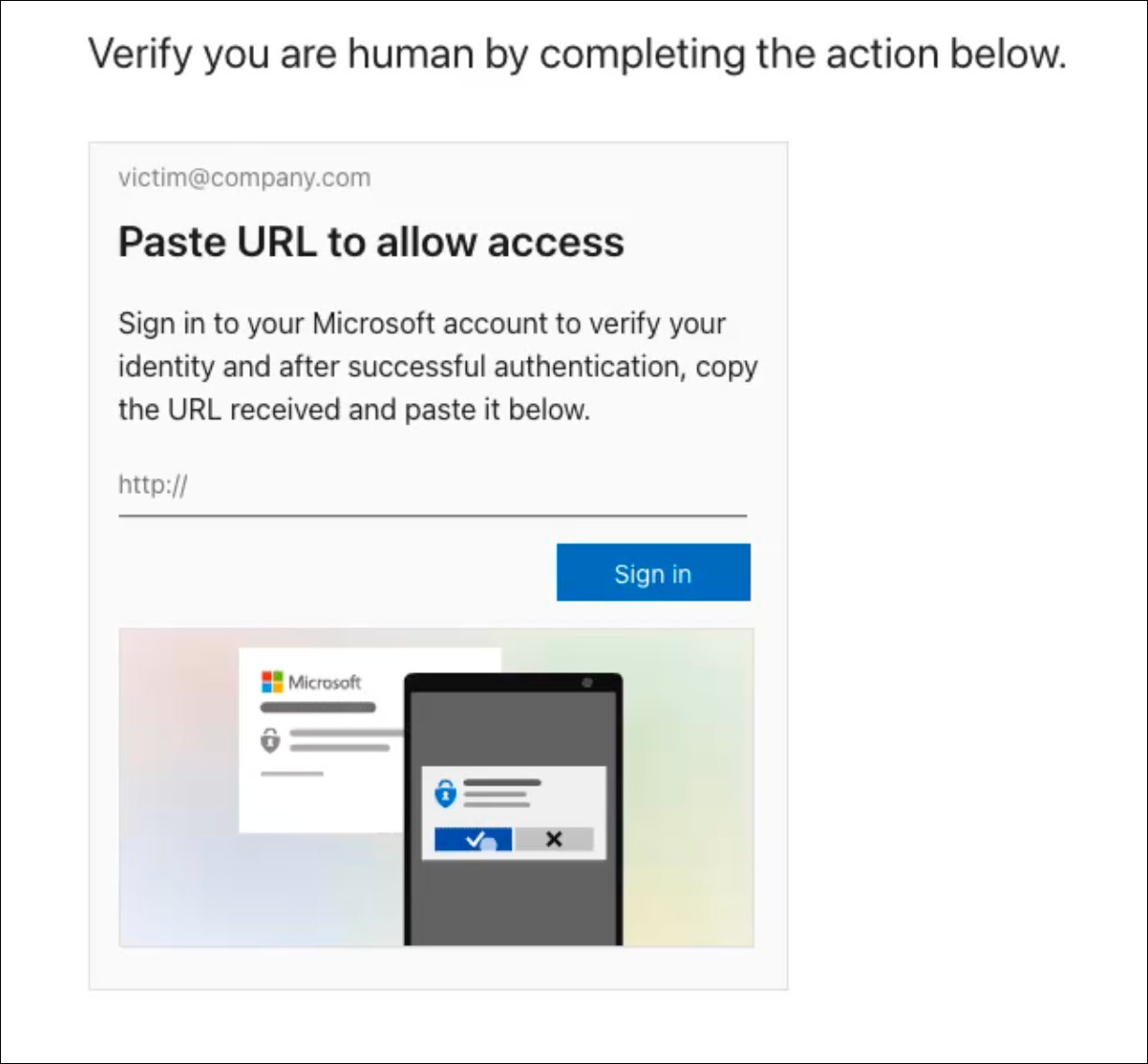
This is the critical moment.
© Push Security
The malicious turnstile prompts visitors to enter their email address and login. Once they’ve logged in to their cloud service, they are instructed to paste the URL into the form.
The URL is the critical part—applications you access via your web browser encode account information, and an access code, into the URL you use to use the application. Someone who can see that information can use it to log into your account if the access token is still active.
By copying and pasting the URL into the form you are basically giving them your username and password.
Avoiding ConsentFix
It’s important to recognize that searching is not a risk free activity: cyber criminals have learned to use Google Search to lure victims— we saw this with Gootloader earlier in the newsletter.
ConsentFix is sneaky, reversing the direction of the information exchange, compared to ClickFix. People who are on guard to ClickFix may not catch the danger in a ConsentFix attack.
The take away is to never trust a turnstile or CAPTCHA that requires you to provide PII (an email address is PII since it can be used to identify you) or asks you to copy or paste. If you encounter such a request assume it’s malicoius and stop. Do not do what it is asking you to do, and then alert the website owner.
More information
https://pushsecurity[.]com/blog/consentfix
LinkedIn Phishing
A new fishing campaign has targeted LinkdIn. Scammers are leaving replies to comments that impersonate the platform itself, warning of policy violations, and providing an external link for more information or to file an appeal.
The warnings come from scammers impersonating LinkedIn staff and often times they use LinkedIn’s official URL shortener lnkd.in to hide the destination. Once redirected to the fishing page, users are asked to verify their identity by logging in.
Microbuinsess lessons
First, many microbusiness owners are part-time. So you may be using LinkedIn for your primary job. Make sure you set strong privacy and security settings on your LinkedIN profile.
Services you have an account with should never contact you about your account via public channels. All such communications should be done privately. LinkedIn has confirmed that it will not notify users of policy violations via comments, so if you see claims of policy violations in your comments, report those posts.
If you do get an email about the status of your account from a service provider, go to the service website, log in, and look for a notification or way to contact the service. Do not click on anything in the email, they could redirect you to a phishing website.
In general be suspicious of any link in emails and comments. Be extremely suspicious of anyone using a URL shortener – they are often used by criminals because they make it harder to see where the link leads. Clicking on links can lead to websites that install malware or try to phish your credentials.
Microsoft has gotten sloppy
Last week was Patch Tuesday (Microsoft issues updates on the 2nd Tuesday of every month, colloquially called Patch Tuesday) and it was a dumpster fire.
Not all users encountered problems, and some users only experienced some of these problems, but a significant number of users experienced:
Broken applications, including built in applications such as Notepad and Calculator
Broken Microsoft 365 features
Broken remote management access
Problems with sleep and hibernation settings—the hibernation issue is so severe that Microsoft was officially advising users to shutdown their computer when they finished working to prevent hibernation from activating
Secure Launch errors causing systems to experience unpredictable restarts and shutdowns.
It was so utterly terrible that Microsoft was forced to push an extremely rare Out-of-band fix. This means they published an update to fix the update right away instead of waiting until the next Patch Tuesday to fix the problems, which is what they usually do.
But this update may not automatically install for everyone, you may need to manually install it. Check your current version of Windows. With the OOB update it should be build 26200.7627 or 26100.7627.
https://support.microsoft.com/en-us/topic/january-17-2026-kb5077744-os-builds-26200-7627-and-26100-7627-out-of-band-27015658-9686-4467-ab5f-d713b617e3e4
Lessons learned
Delay updates for a week
The traditional advice for home users and small businesses has been to update your systems as quickly as possible. And this is generally good advice but Microsoft is suffering from quality control issues as of late, making it risky to apply updates right away. Under Settings \ Windows Updates you will see “Pause updates.” You can pause for up to 35 days but that is too long. 7 days should be adequate.
Accepting the update right away is risky because it may break your computers. But delaying is also risky because the updates include security updates which protect your computer and hackers will start targeting systems that aren’t updated. Some experts say you can go up to 14 days but in my experience 7 days is a good trade off for home and small business users.
Consider January’s update: Patch Tuesday was January 13, 2026, and Windows 11 systems almost immediately started encountering problems. It took Microsoft 4 days to replace it. Also sign up for our news letters, if a Windows update is causing wide spread problems and you need to delay longer than 7 days, we’ll let you know!
Practice rolling back an update
An update rollback returns your system to the state it was in before the update. This is a quick and easy method to undo a bad update. It may not work, but all other solutions are comparitevely complex, so start with the easiest fix first. Make sure you know how to do a rollback and then practice it. (After you rollback to confirm you are famiiar with the process, be sure to update the computer again!)
Schedule Backups
Sometimes an update breaks things so spectacularly that the only option is to reinstall Windows. This happened in October 2025 to several thousand folks. So have backups of your data and have a copy of Windows on a thumb drive in case you have to reinstall.
Gemini Leaks Data
Google’s Gemini AI was tricked into leaking Calendar data, which included summarizing all meetings on a specific day, even private meetings, and could be tricked into creating new meetings as well.
The risk from this specific vulnerability is, admittedly minor. But Gemini was tricked using natural language prompts and there have been several instances were angentic browsers and applications have been tricked into install spyware or malware based on these prompts that are invisible to the user.
Recommendation: disable AI or agentic settings in your web browsers. Every time your web browser updates, check to see if agentic settings have been added or changed. Sometimes an update will reactive a setting you deactivated.
References
https://www.bleepingcomputer[.]com/news/security/gemini-ai-assistant-tricked-into-leaking-google-calendar-data/